
Bank Details
Contracts can display bank details so that customers know where to send money. This is commonly used when you require a down payment before an appointment, such as a deposit for a tattoo session.
What is shown to the customer
Section titled “What is shown to the customer”When bank details are enabled, the following information is displayed on the contract:
| Field | What it shows |
|---|---|
| IBAN | Your International Bank Account Number |
| BIC | Your Bank Identifier Code |
| Full Name | The name of the account holder |
| Reference | An automatically generated payment reference based on the contract’s sequence number (e.g. VER-2026-000124) |
The reference is generated automatically by inkStar and cannot be changed. It uses the contract’s sequence number so that your accounting team can easily match incoming bank transfers to the correct contract.
Choosing the bank details source
Section titled “Choosing the bank details source”On the template’s master data page, turn on the “Show Bank Details” toggle and then tap the Bank Details Source dropdown to choose where the bank details should come from. There are three options:
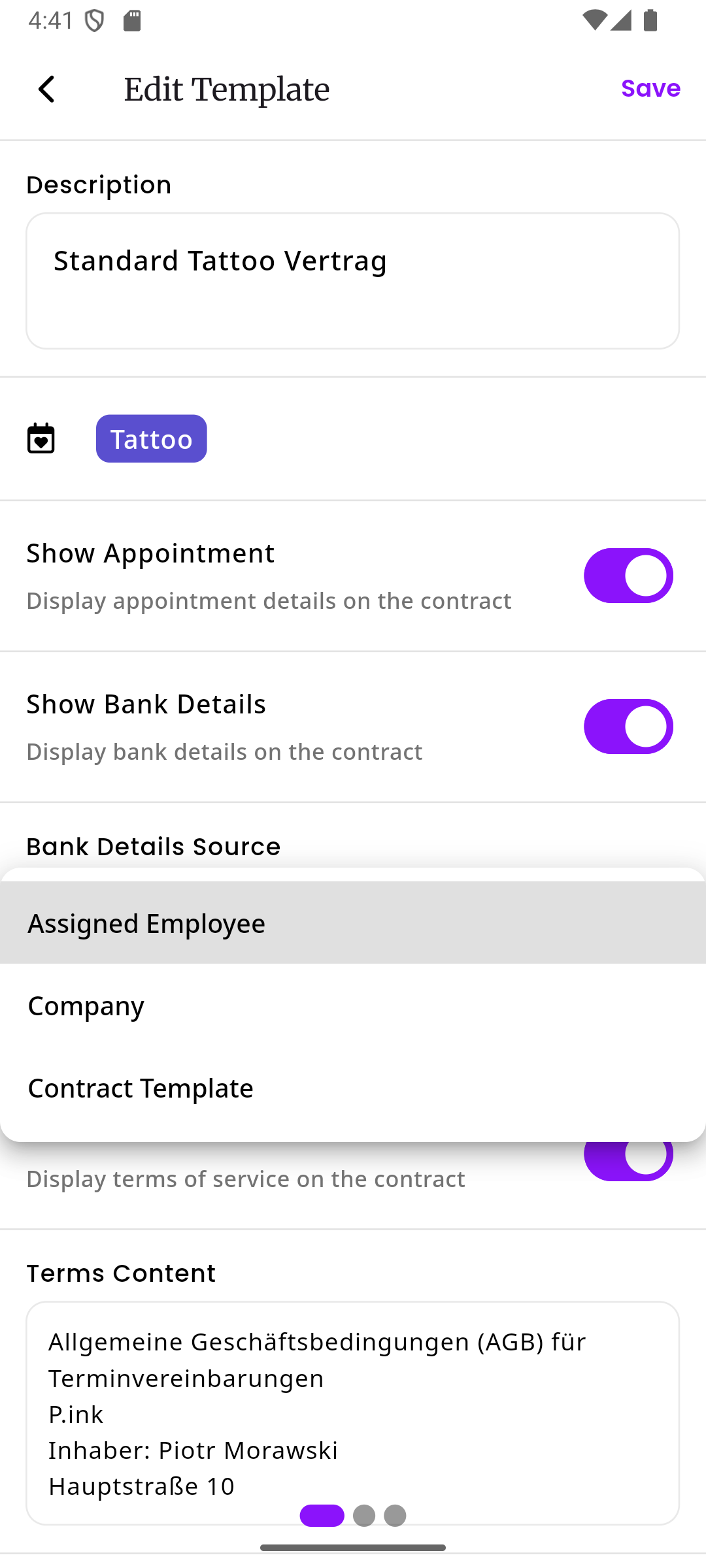
Assigned employee
Section titled “Assigned employee”The bank details of the employee who is assigned to the appointment will be shown on the contract. This is useful when each artist in your studio has their own bank account and collects their own deposits.
Example: You have two tattoo artists, Anna and Ben. Each has their own bank details saved in their employee profile. When a customer books an appointment with Anna, the contract will show Anna’s bank details so the customer sends the deposit directly to her.
Fallback: If the assigned employee has not set up their bank details yet, the system will automatically use the company bank details instead, so the customer always sees valid bank information.
Company
Section titled “Company”The bank details from your company profile are always used, regardless of which employee is assigned to the appointment. This is the simplest option and works well for studios where all payments go to one central account.
Contract template
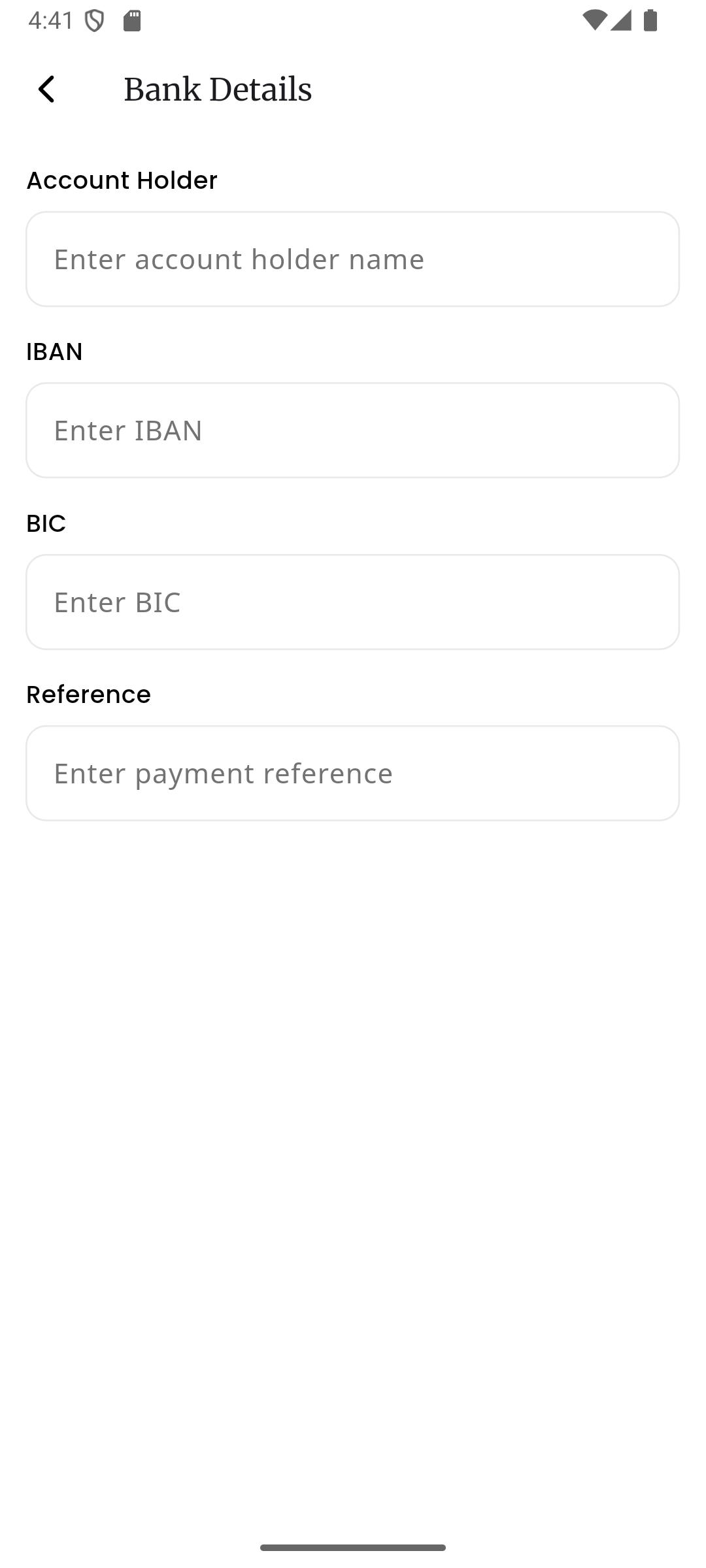
Section titled “Contract template”Bank details that you enter directly on the template itself are used. This is useful when you need specific bank details for a particular type of contract that are different from both your company and employee bank details.
When you select this option, a Bank Details section appears on the master data page where you can enter the account holder name, IBAN, BIC, and payment reference directly on the template.
Where to set up bank details
Section titled “Where to set up bank details”Bank details can be configured in three places in inkStar:
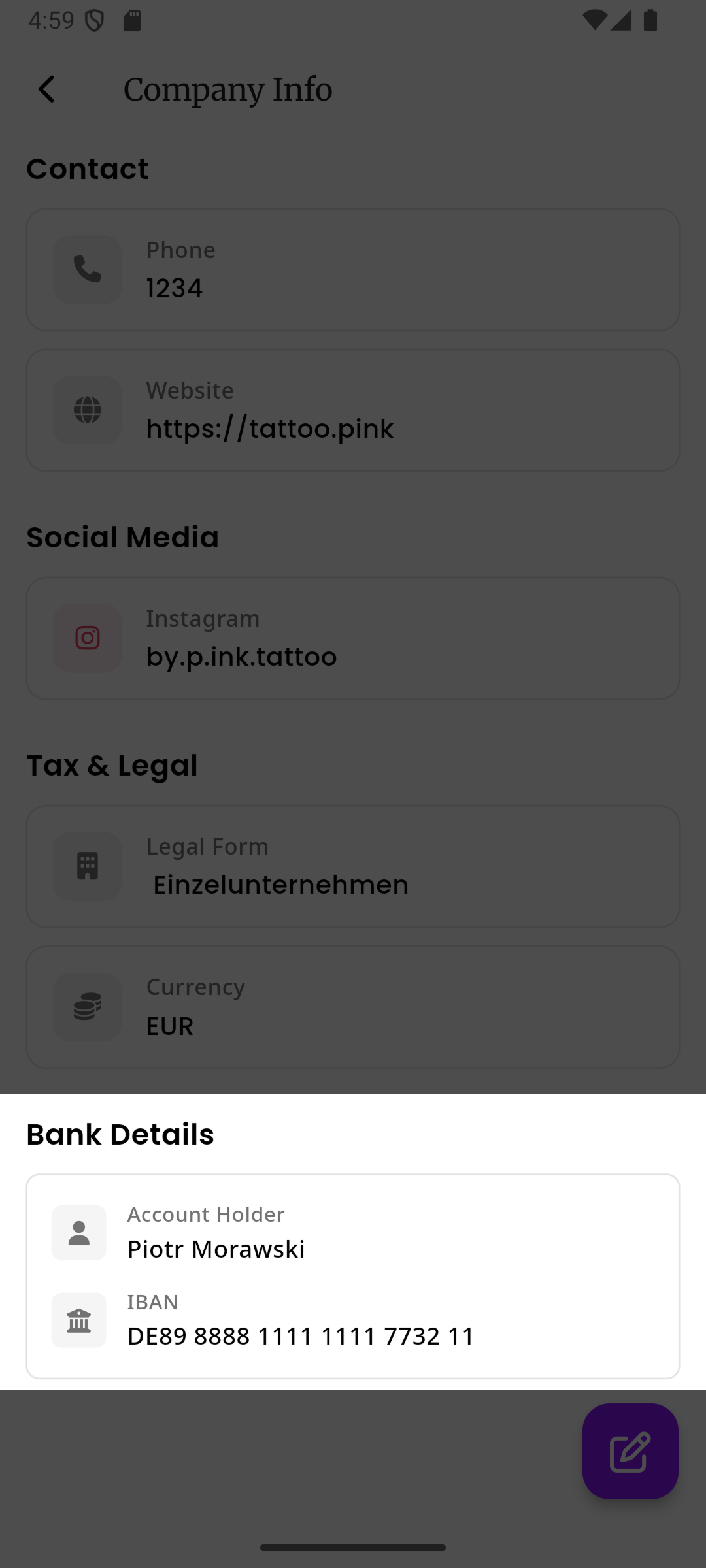
1. Company profile
Section titled “1. Company profile”Go to Company Setup to set your studio-wide bank details. These are used when the bank details source is set to Company, or as a fallback when the assigned employee has no bank details configured.
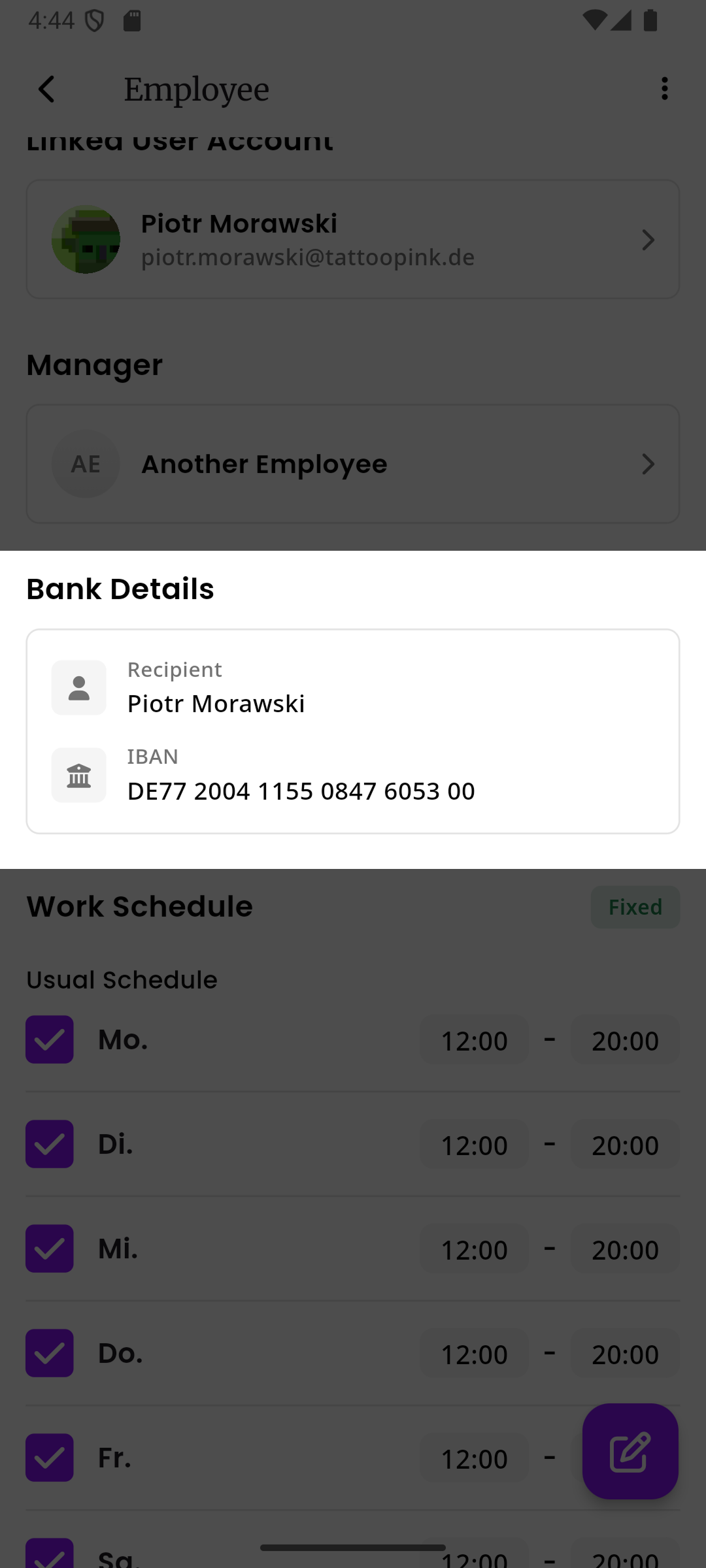
2. Employee profiles
Section titled “2. Employee profiles”Go to Employees and open an employee’s profile to set their individual bank details. These are used when the bank details source is set to Assigned Employee.
3. Contract templates
Section titled “3. Contract templates”On the template’s master data page, you can enter bank details directly on the template. These are used when the bank details source is set to Contract Template.
Turning off bank details
Section titled “Turning off bank details”If your contracts don’t need to show bank information (for example, if you collect payments in person or through an online payment link), simply leave the “Show Bank Details” toggle turned off on the template. No bank information will appear on the contract.