
Contract Lifecycle
Contracts go through several stages from creation to completion.
Status flow
Section titled “Status flow”Draft → Published/Shared → Filled Out/Signed → LockedThe contract has been created but not yet sent to the customer. It can be freely edited.
Published/Shared
Section titled “Published/Shared”The contract has been published and a link is available. The customer can access it with an authentication code.
Filled Out
Section titled “Filled Out”The customer has submitted the contract with all required fields completed and signatures provided. At this point, the contract URL becomes inaccessible to the customer and they can no longer open the form. The customer receives an email with a copy of the signed contract PDF, the terms of service (if defined), and all template attachments.
Overdue
Section titled “Overdue”A contract is overdue when the fillout deadline has passed and the customer hasn’t submitted yet.
Locked
Section titled “Locked”After submission, the contract enters lockdown mode. No further changes can be made.
Deleted
Section titled “Deleted”Soft-deleted contracts can be restored.
Contract detail page
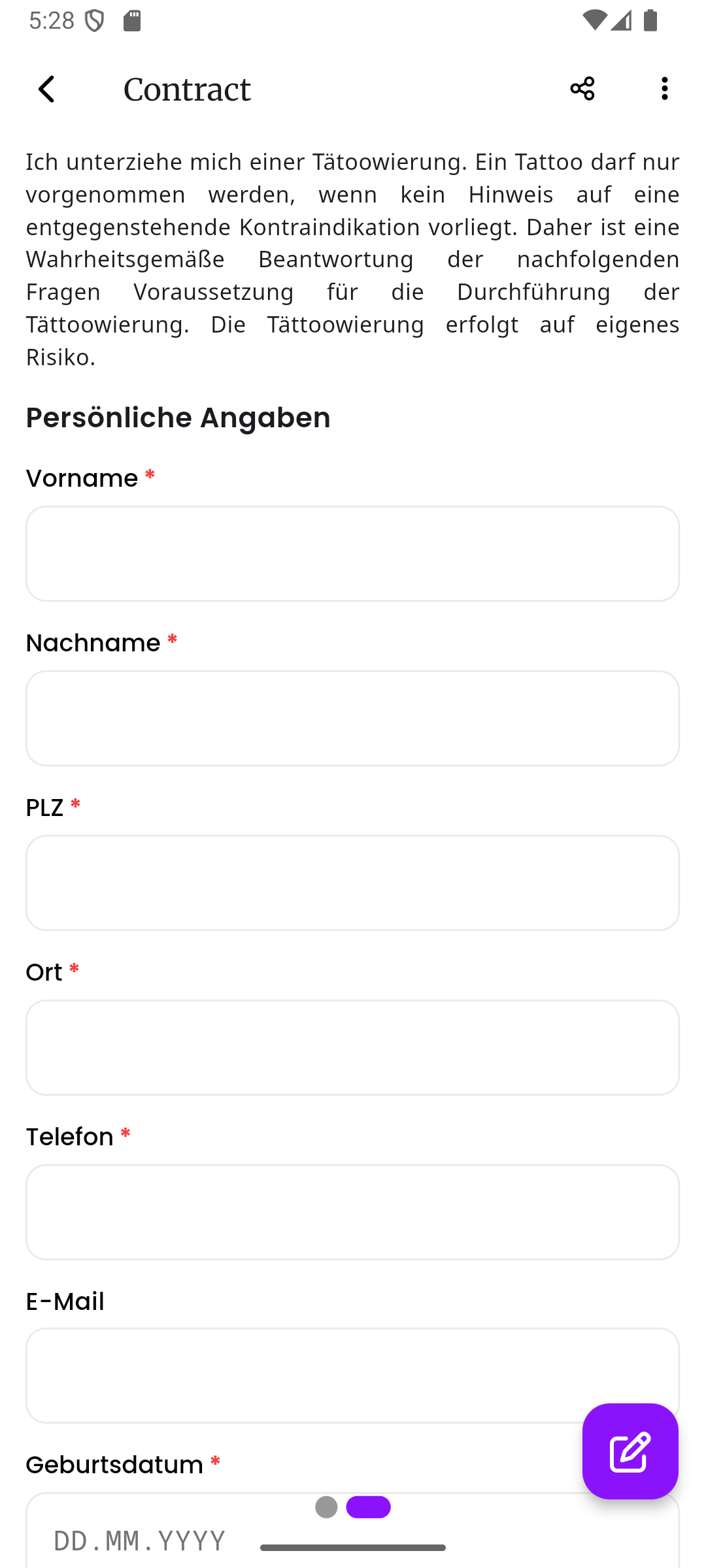
Section titled “Contract detail page”The contract detail page has two views that you can swipe between. Two dots at the bottom of the screen indicate which view you are on.
Info page
Section titled “Info page”The info page shows all the key information about the contract:
- The contract name, appointment kind badge, and sequence number
- The fillout deadline (if set)
- The linked customer (tappable to navigate to their profile)
- The linked appointment (if any)
- The Signed Document section, which appears after the customer submits the contract
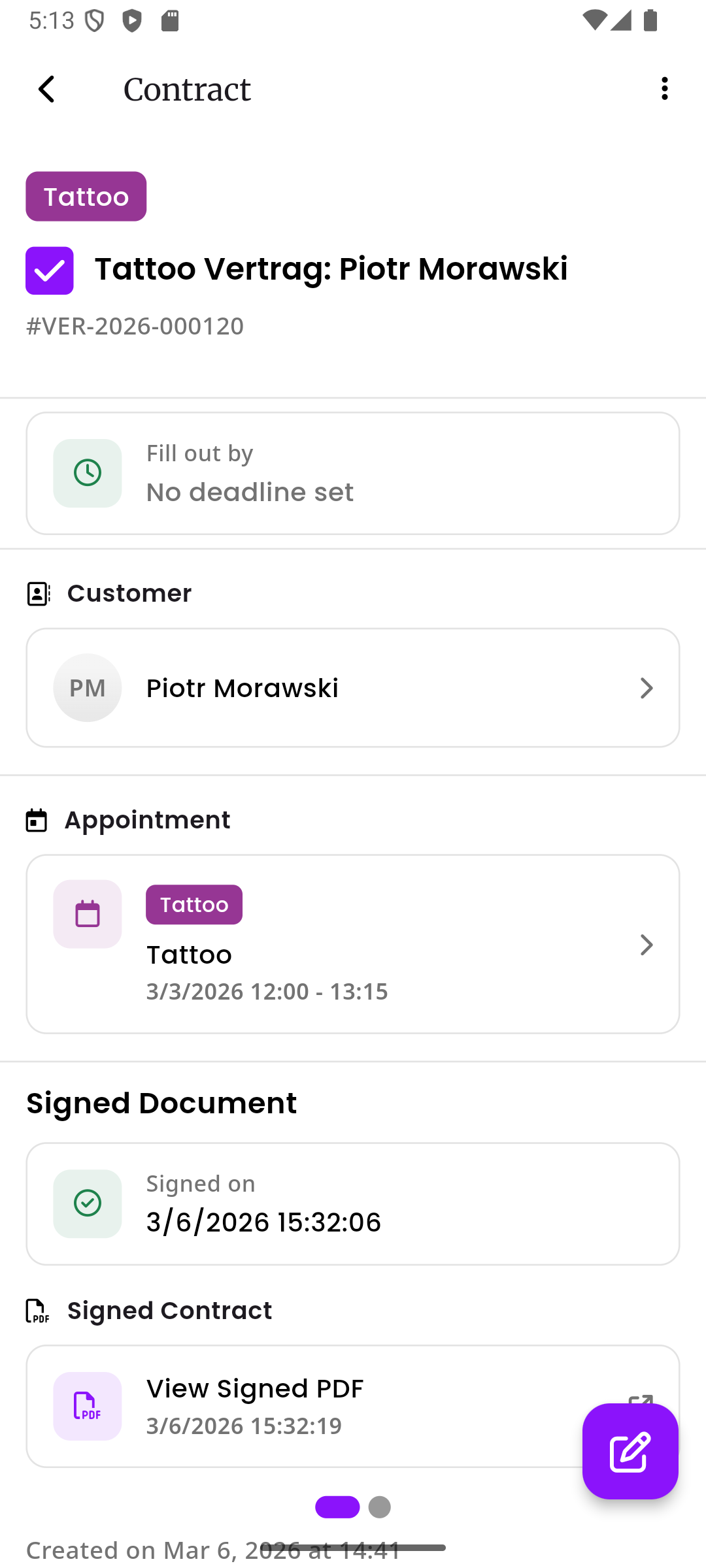
In the Signed Document section, you can:
- See the exact date and time when the contract was signed
- Tap View Signed PDF to download the exact PDF that was sent to the customer
- Tap View Terms of Service to view and download the terms of service that were shared with the customer (if terms of service were enabled on the template)
Preview page
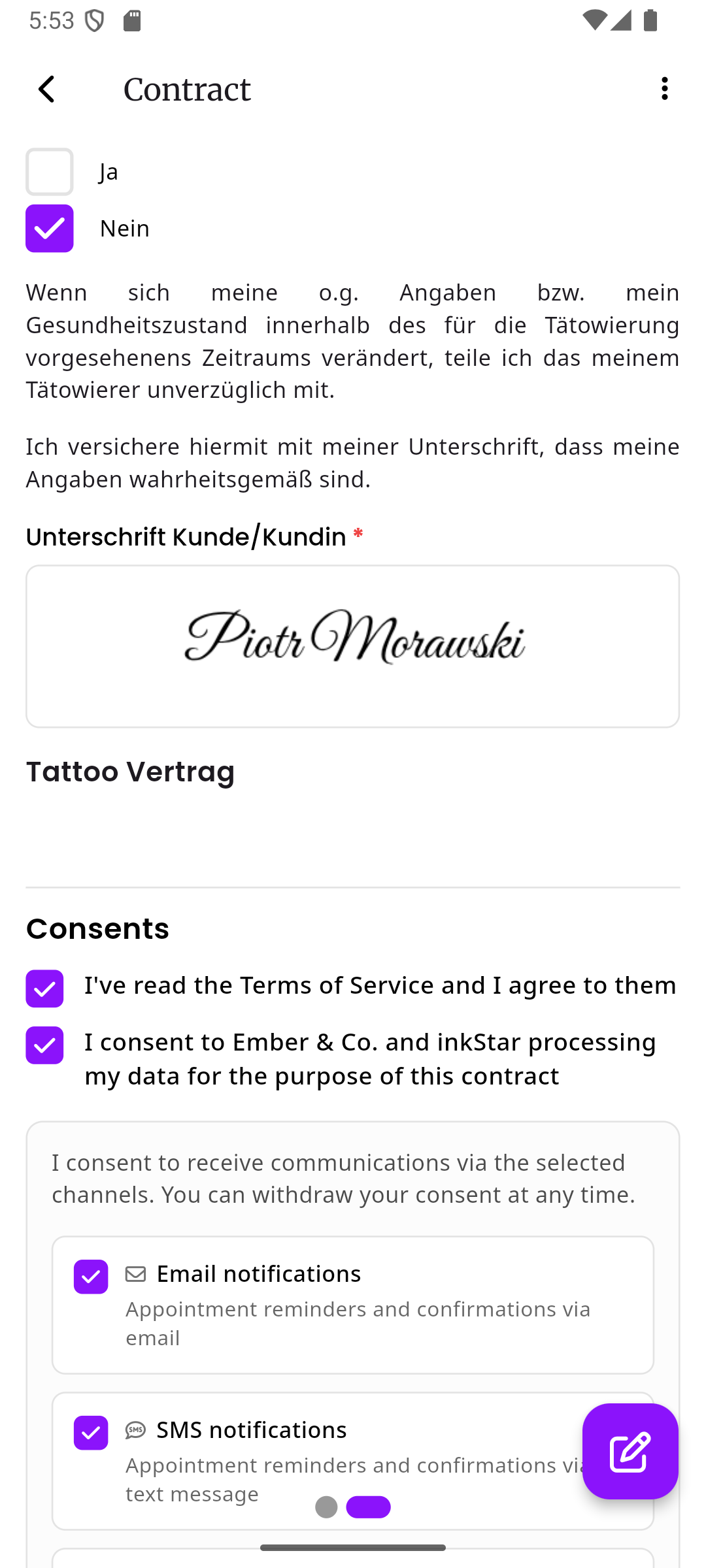
Section titled “Preview page”The preview page shows a read-only rendering of the filled-out contract. It displays all blocks with the values the customer entered, their signature, and the consents they gave (terms of service, data processing, communication preferences). Consents that were accepted are displayed with a purple check mark.
Actions
Section titled “Actions”- Share - Publish and share via the native share sheet
- Edit - Modify contract details (before submission)
- Delete / Restore - Soft-delete and restore