
Customer Form
When a customer opens a shared contract link, they see a web-based form in their browser where they fill out fields, provide consent, and sign the contract.
The form is fully responsive and works on any device - phones, tablets, laptops, and desktops. It also automatically captures values filled in by browser auto-complete or browser extensions, so customers can fill out the form even faster if their browser already has their personal information saved.
Access code
Section titled “Access code”The first time a customer opens a contract link, they are asked to set an access code. The access code is the customer’s birthday in the format DD-MM-YYYY. This code protects the contract so that only the customer can access and fill it out.
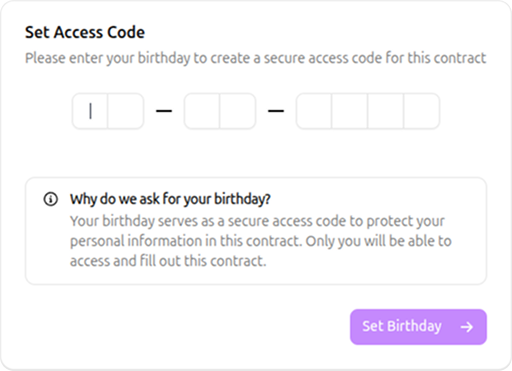
Once set, the customer must enter this same access code every time they return to the contract. This allows the customer to continue filling out the contract from any device - they just need the contract link and their access code.
Form layout
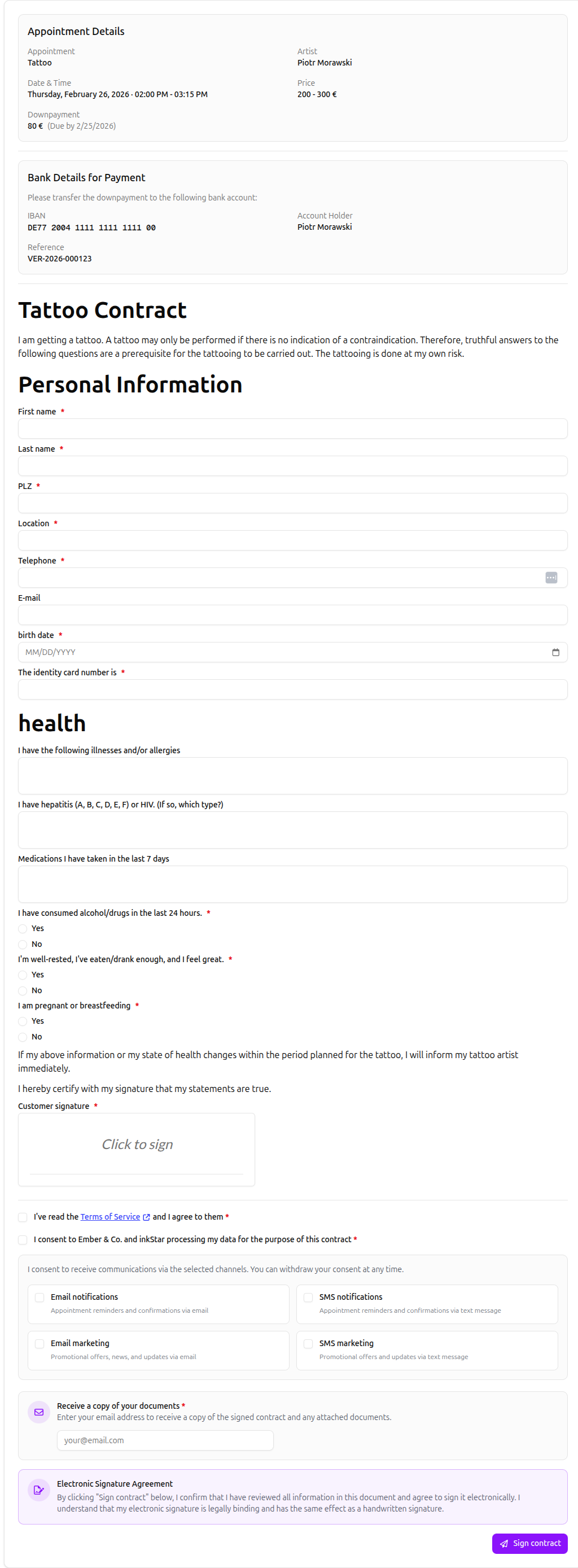
Section titled “Form layout”After entering the access code, the customer sees the full contract form. The form is displayed as a single scrollable page with several sections from top to bottom.
Appointment details
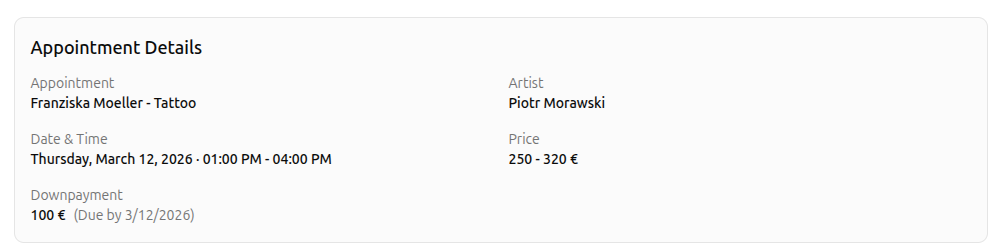
Section titled “Appointment details”If the template has Show Appointment enabled and the contract is linked to an appointment, an appointment details card is shown at the top of the form. It displays the appointment name, assigned artist, date and time, price range, and downpayment amount with its due date.
Bank details for payment
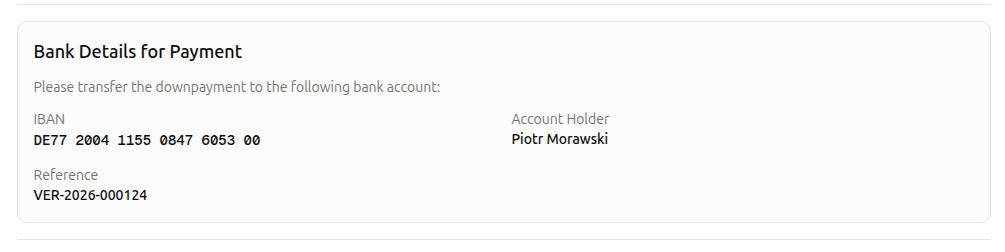
Section titled “Bank details for payment”If bank details are configured on the template, a bank details card is shown so the customer knows where to send their downpayment. It displays the IBAN, account holder name, and a payment reference number that helps you identify the payment.
Contract blocks
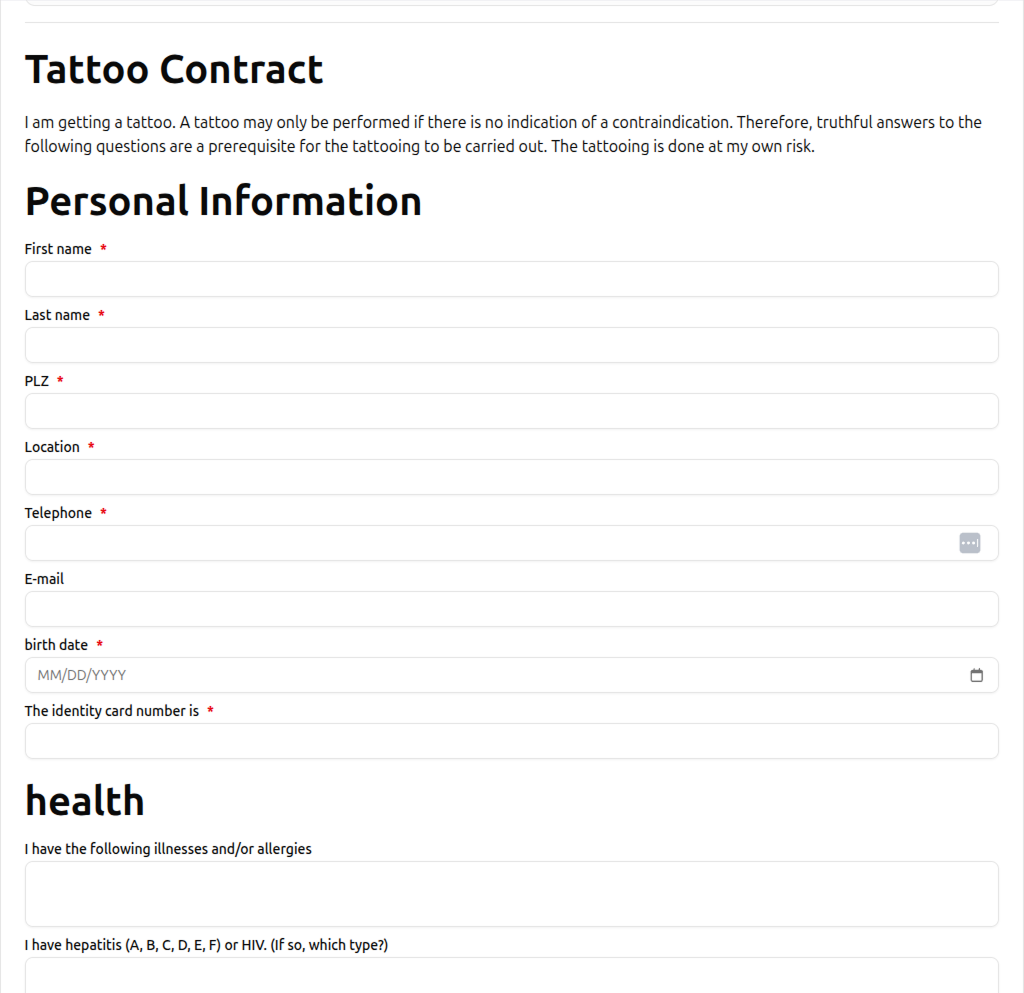
Section titled “Contract blocks”The main body of the form contains all the blocks from the template in order. This includes headings, text paragraphs, input fields, date pickers, yes/no questions, checkboxes, and signature fields. Required fields are marked with a red asterisk (*).
Terms of service
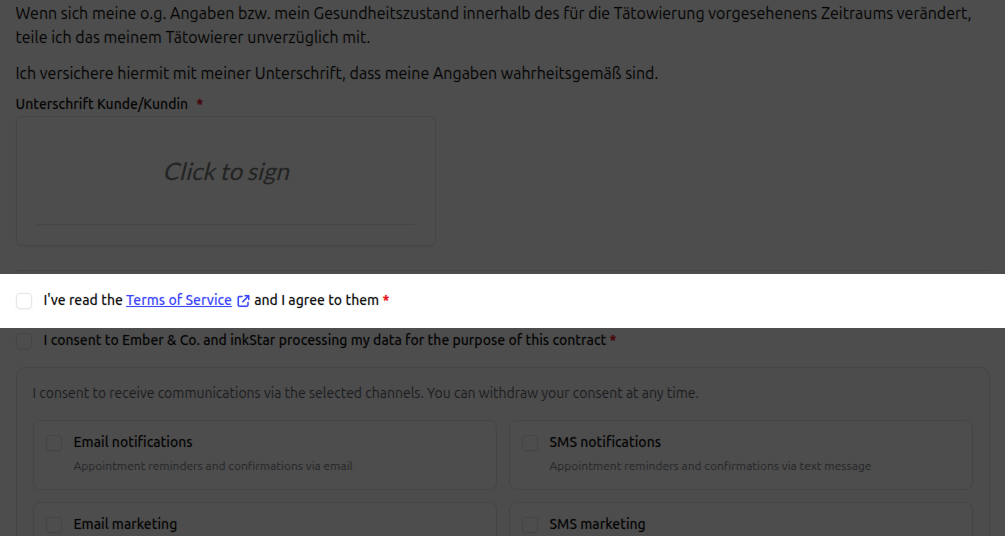
Section titled “Terms of service”If terms of service are enabled on the template, a checkbox appears that the customer must check to confirm they have read and agree to the terms. The “Terms of Service” text is a clickable link that opens a separate page where the customer can read the full terms.
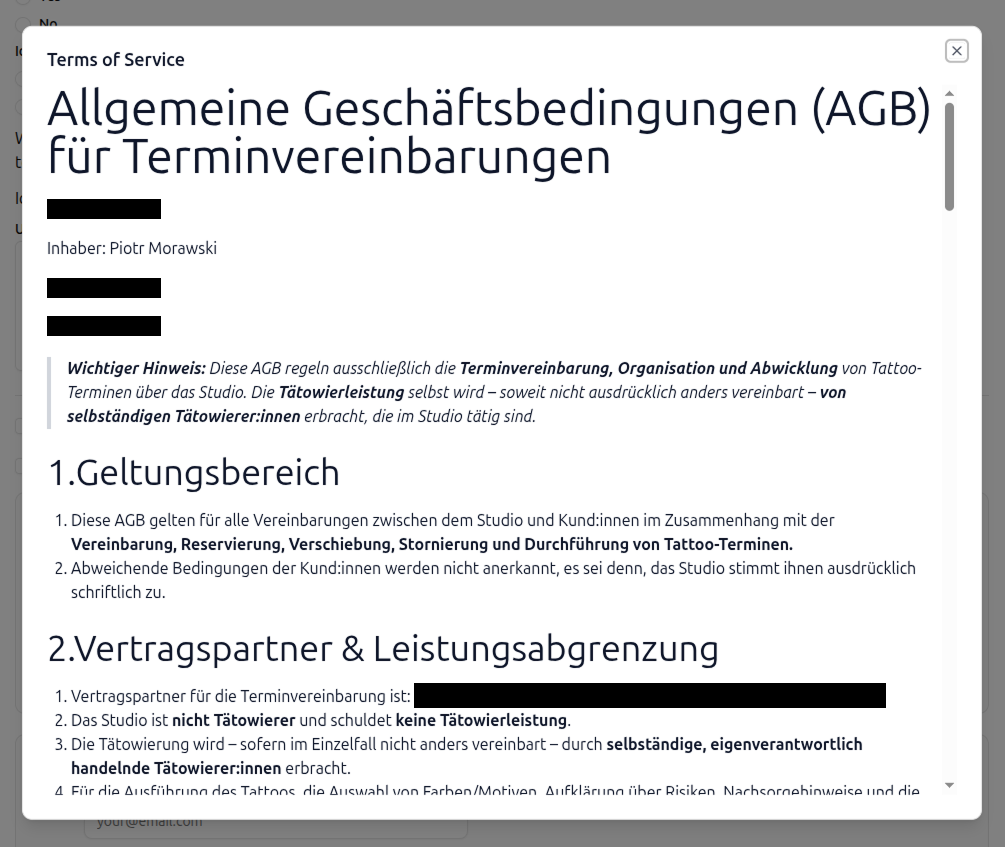
When the customer taps the link, a page opens showing the complete terms of service text as it was written in the template’s rich text editor.
Data processing consent
Section titled “Data processing consent”Below the terms of service, a data processing consent checkbox is always shown. The customer must confirm that they consent to your company and inkStar processing their data for the purpose of this contract. This is required for GDPR compliance.
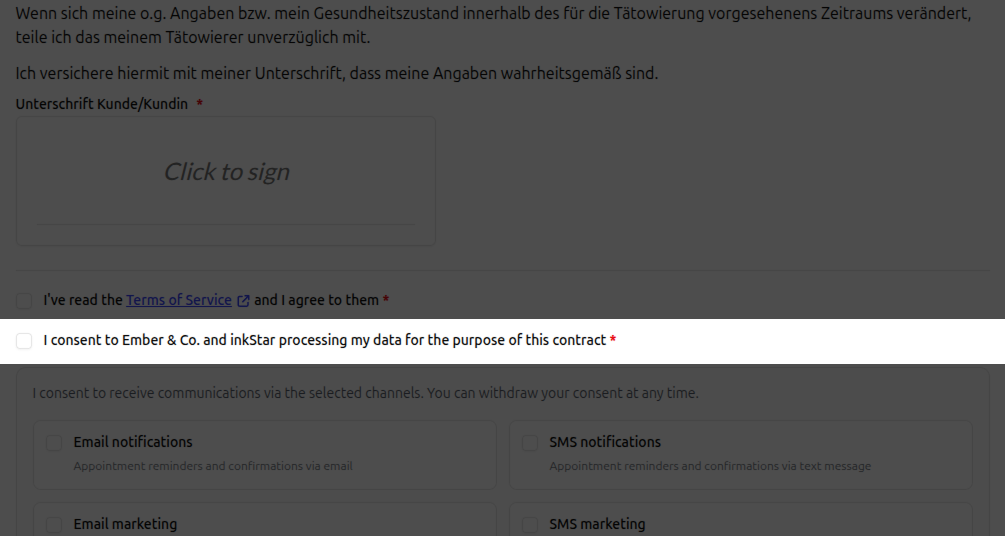
Below the data processing checkbox, the customer can optionally opt in to communication preferences such as email notifications, SMS notifications, email marketing, and SMS marketing. See Consent Collection for more details.
Field saving
Section titled “Field saving”As the customer fills out fields, each value is automatically saved to the server when the field loses focus. This means partial progress is preserved even if the customer closes the browser and returns later. They can continue right where they left off by entering their access code again.
After signing
Section titled “After signing”Once the customer taps the Sign contract button and the contract is submitted:
- The contract is locked and can no longer be edited
- The contract URL becomes inaccessible to the customer - they can no longer open the form through the link
- The customer automatically receives an email with:
- A copy of the signed contract as a PDF
- The terms of service, if any were defined on the template
- All attachments that were configured on the contract template
This ensures the customer always has a complete copy of everything they agreed to.
Resetting the access code
Section titled “Resetting the access code”If a customer forgets their access code, they can contact one of your employees for help. The employee can reset the access code from the contract detail page by tapping the three-dot menu and selecting Reset customer access code.
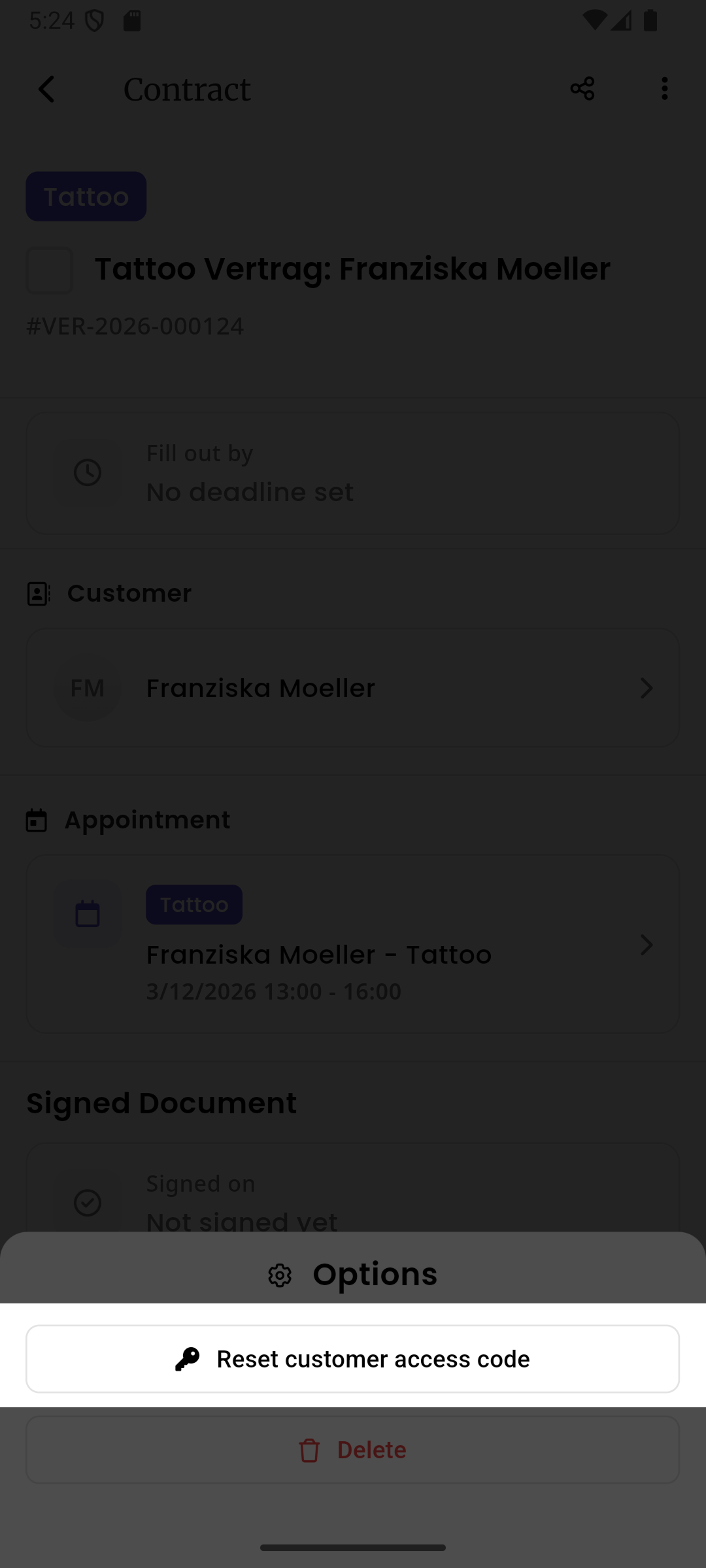
After the access code has been reset, the next time the customer visits the contract link they will be able to set a new access code, just like on their first visit.