
Payment Methods
Payment methods define how customers can pay. inkStar supports both built-in managed methods and custom methods you create yourself, as well as methods created automatically through integrations like Mollie.
Accessing payment methods
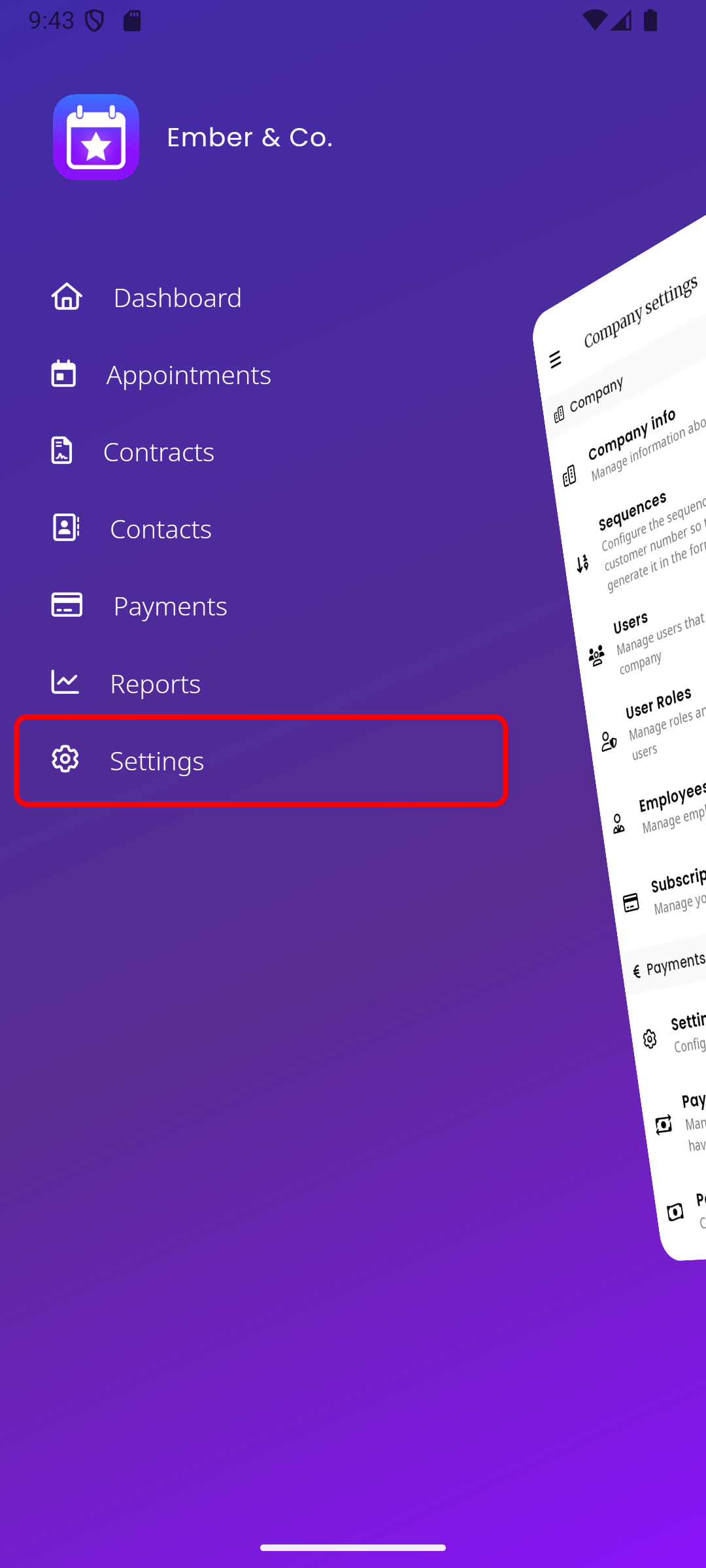
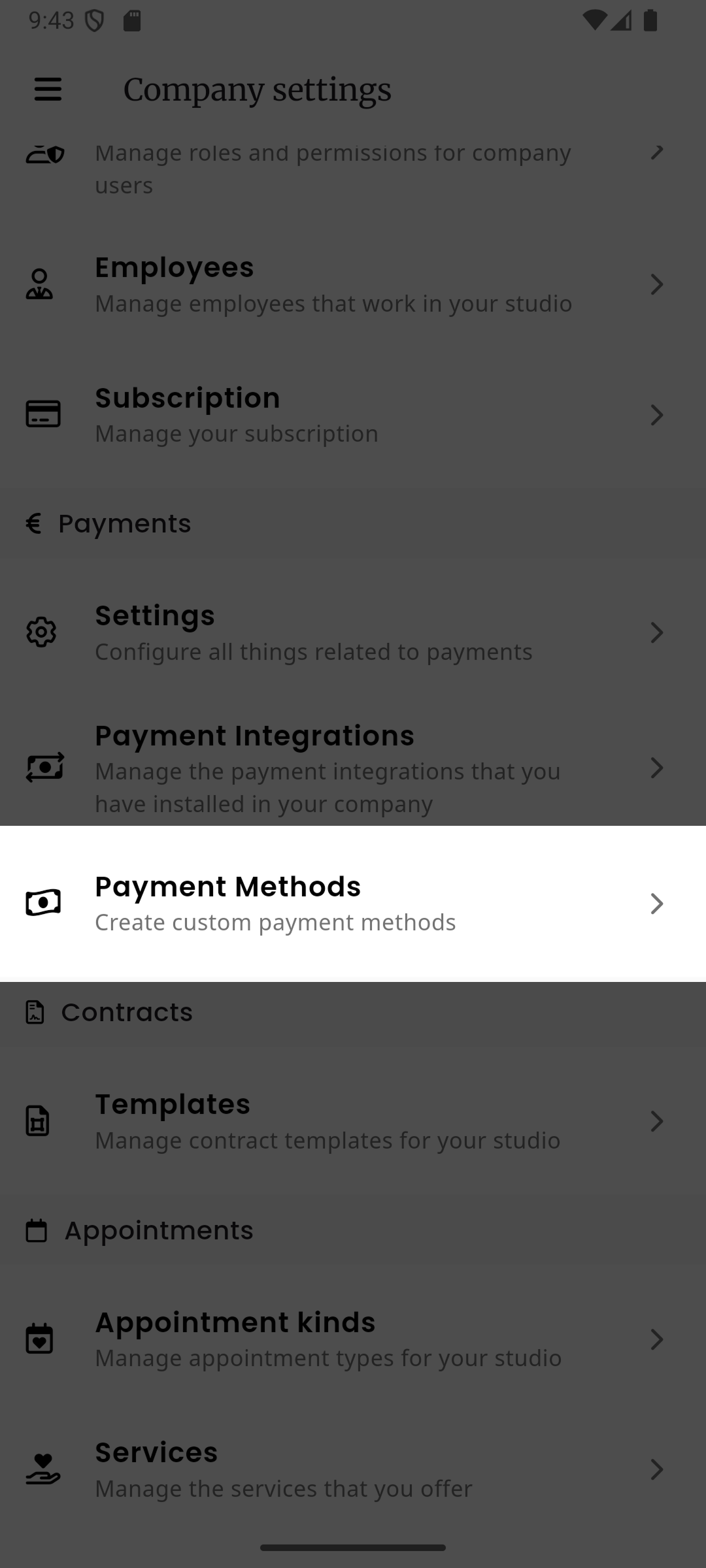
Section titled “Accessing payment methods”Navigate to Settings in the sidebar, then select Payment Methods under the Payments section.
Types of payment methods
Section titled “Types of payment methods”There are three types of payment methods in inkStar:
| Type | Created by | Can be deleted? | Payments booked automatically? |
|---|---|---|---|
| Managed (built-in) | System (on company creation) | No, only activated/deactivated | No |
| Custom (user-created) | You | Yes (soft-delete with restore) | No |
| Integration-linked | Integration (e.g., Mollie) | No | Yes |
Managed and custom methods are non-integrated. When a customer pays with cash or via bank transfer, the payment is not booked automatically. You must manually record the payment in inkStar.
Integration-linked methods (e.g., Mollie) are integrated. Payments are booked automatically when the customer completes the payment through the integration.
List view
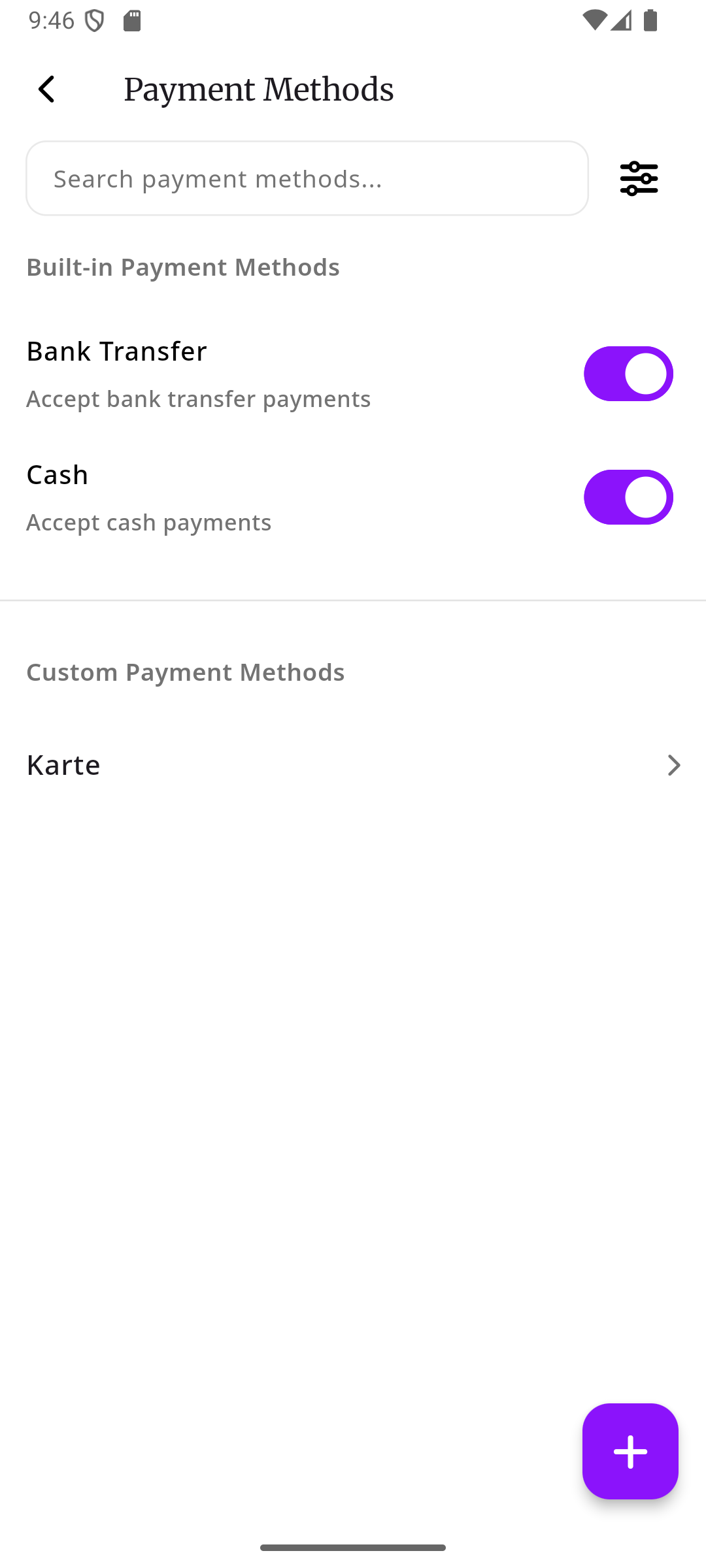
Section titled “List view”The payment methods page displays all your payment methods in two sections.
Built-in methods section
Section titled “Built-in methods section”At the top of the list, you see the built-in payment methods (Cash and Bank Transfer). Each one has a toggle switch to activate or deactivate it. The toggle uses optimistic updates, so the switch changes immediately and reverts if the server request fails.
Custom & integration methods section
Section titled “Custom & integration methods section”Below the built-in methods, separated by a divider, you see all custom and integration-linked payment methods. Each method is displayed as a tappable list tile with a chevron icon on the right.
Search
Section titled “Search”A search bar at the top of the page lets you search payment methods by name. The search filters results as you type (with a short debounce delay).
Filters
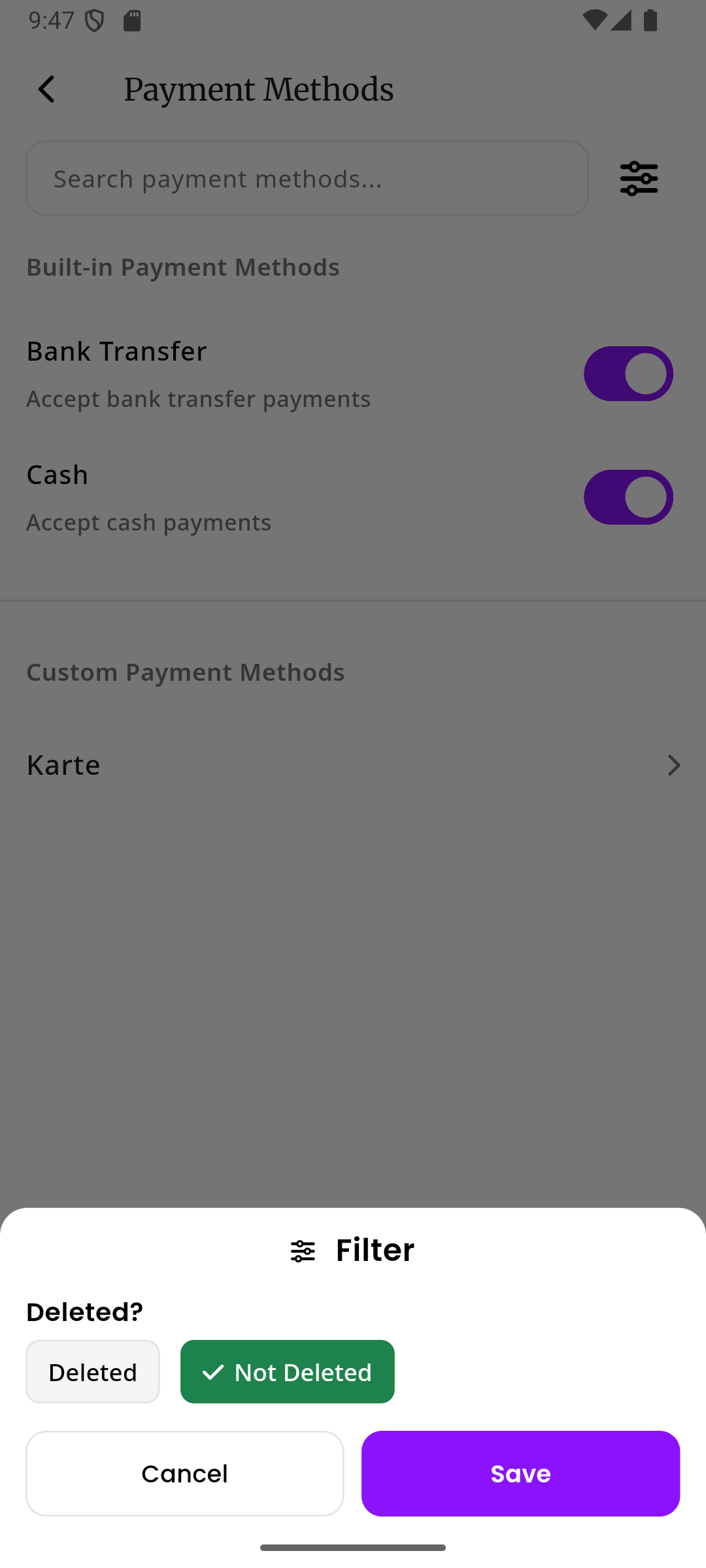
Section titled “Filters”Tap the filter icon (sliders) next to the search bar to open the filter sheet. You can filter by:
- Not deleted (default): shows only active payment methods
- Deleted: shows all payment methods, including ones that have been previously deleted
This filter applies across all payment method types: managed, custom, and integration-linked.
Empty state
Section titled “Empty state”When no payment methods match your current search or filter criteria, an empty state with a credit card icon is displayed.
Managed methods
Section titled “Managed methods”When a new company is created in inkStar, two default payment methods are automatically provisioned:
| Method | Description | Special behavior |
|---|---|---|
| Cash | For cash payments | When selected during payment recording, shows a change-to-give calculator |
| Bank Transfer | For bank transfer payments | Standard bank transfer method |
Managed methods cannot be deleted or renamed. They can only be toggled active/inactive using the switch next to each method in the list view.
When a managed method is deactivated, it will no longer appear as an option when recording payments.
Custom methods
Section titled “Custom methods”You can create as many custom payment methods as you need. This is useful when your studio accepts payments through providers or terminals that are not integrated with inkStar, for example an external card terminal, PayPal via QR code, or store credit.
Creating a custom method
Section titled “Creating a custom method”- Open Settings → Payments → Payment Methods
- Tap the + button (floating action button) in the bottom-right corner
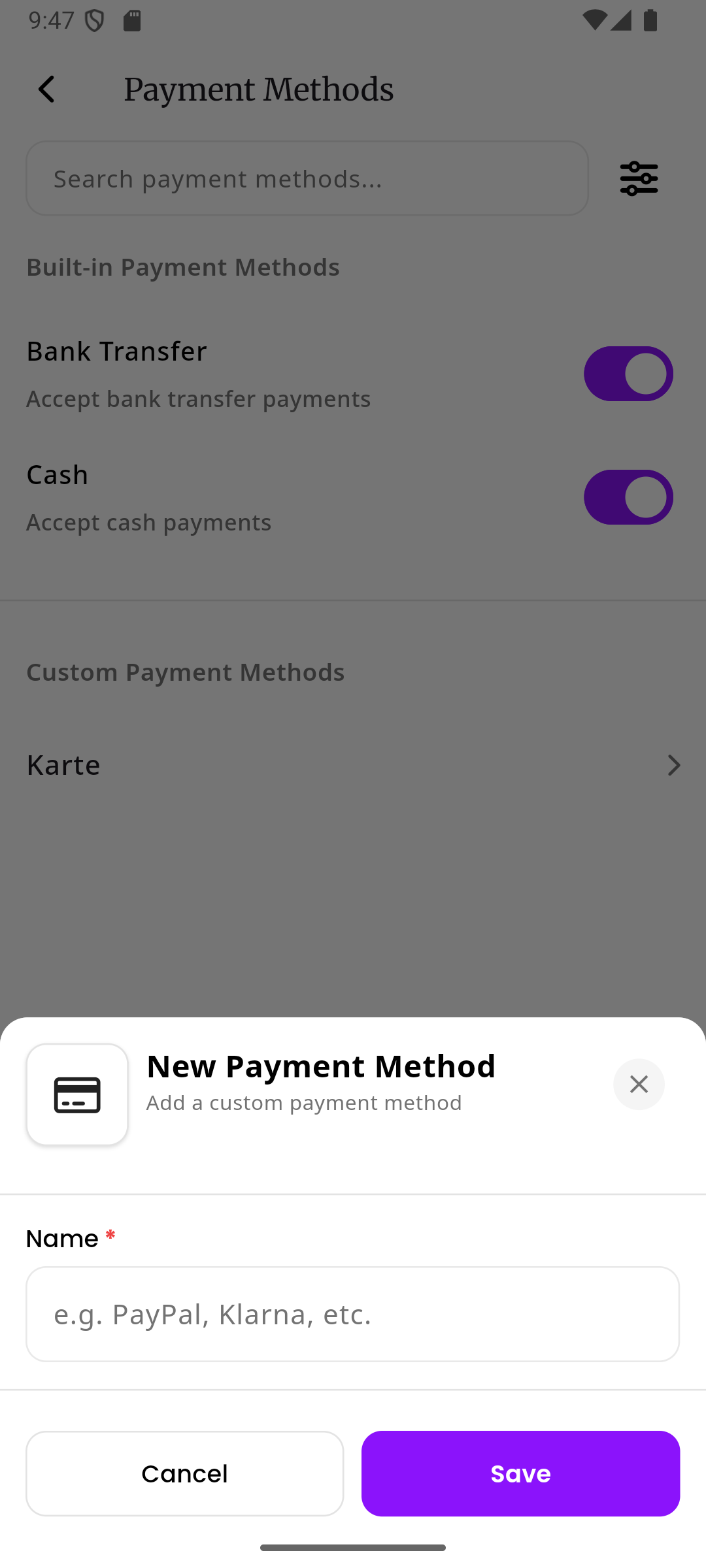
- A bottom sheet opens with a single text field for the payment method name
- Enter the name (e.g., “PayPal”, “Klarna”) and tap Save
- The new payment method appears in the custom methods section of the list
Managing custom methods
Section titled “Managing custom methods”Custom methods can be:
- Renamed: tap the method in the list to open its detail page and edit the name
- Deleted: soft-deleted from the detail page (the method is not permanently removed)
- Restored: previously deleted methods can be restored using the filter to show deleted items
Integration-linked methods
Section titled “Integration-linked methods”When Mollie is connected, additional payment methods are automatically created in inkStar whenever a customer makes a payment using a new method through Mollie. For example, if a customer pays with iDEAL for the first time, an “iDEAL” payment method is automatically created.
These methods appear in the custom methods section of the list alongside your user-created methods. They have an integration field linking them to Mollie.
See Mollie Payment Methods for details.
Permissions
Section titled “Permissions”To manage payment methods, users need the Payments permission:
| Action | Required permission |
|---|---|
| View, search, and browse payment methods | Payments: Read |
| Create, edit, delete, restore, or toggle payment methods | Payments: Manage |
Users without the required permission level will receive an authorization error when attempting the action.